
How to Deliver Extracted Video to S3 at Scale
Delivering extracted video to S3 is the process of automating video file extraction from a source, processing it with tools like FFmpeg or AWS MediaConvert, and uploading the output directly to Amazon S3 for durable, scalable storage. The standard industry term for this workflow is a video processing pipeline, and building one correctly separates teams that scale from teams that spend weekends firefighting broken uploads. AWS Lambda, the boto3 SDK, and S3 event notifications are the three components every developer reaches for first. This guide covers the full stack: tool selection, pipeline setup, upload optimization, and the mistakes that cost you hours.
What AWS services and tools enable automated extraction and delivery to S3?
The core toolkit for any automated video extraction and delivery workflow maps cleanly to four AWS services plus one indispensable open-source binary.
AWS Lambda handles serverless compute. It responds to S3 events, runs your processing logic, and exits without requiring you to manage a single server. For video workloads, Lambda works best on clips under a few minutes. Longer files push against memory and timeout limits, which is where MediaConvert takes over.

Amazon S3 is both the input and output layer. Raw uploads land in one bucket; processed outputs go to another. S3's eleven nines of durability make it the default choice for storing video assets at any scale, from a few files to millions.
FFmpeg is the command-line tool that does the actual extraction work: clipping segments, extracting audio, generating thumbnails, and transcoding formats. FFmpeg must be packaged as a Lambda Layer or static binary because Lambda's runtime environment does not include it by default. This is the single most common setup mistake.
AWS MediaConvert is the managed transcoding service for production-scale jobs. It handles HLS packaging, thumbnail generation, and multi-format output without you writing FFmpeg commands by hand. It writes results directly to S3 destinations you configure.
boto3, the AWS Python SDK, is what your Lambda function uses to interact with S3. Its "upload_fileandupload_fileobj` methods handle multipart uploads automatically, splitting large files into parallel chunks without any custom chunking logic on your end.
Pro Tip: Package your FFmpeg binary as a versioned Lambda Layer shared across functions. This keeps your deployment packages small and makes FFmpeg upgrades a one-line change in your layer ARN.
How do you set up a serverless video extraction pipeline?
Building a Lambda-based pipeline to transfer video files to S3 follows a predictable pattern. Here is the sequence that works in production.
-
Create two S3 buckets. One receives raw video uploads (the trigger bucket). The second stores processed outputs (the destination bucket). Keeping them separate prevents recursive trigger loops and makes IAM permissions cleaner.
-
Configure an S3 event notification. Set the trigger bucket to invoke your Lambda function on
s3:ObjectCreated:*events filtered by.mp4or your target extension. This fires the pipeline automatically on every upload. -
Package FFmpeg into a Lambda Layer. Download a static FFmpeg build compiled for Amazon Linux 2, zip it, and publish it as a Lambda Layer. Attach the layer ARN to your function. Lambda-based pipelines benefit significantly from prepackaged FFmpeg layers because they reduce deployment complexity and keep cold start times predictable.
-
Write the Lambda handler. The function downloads the source file from S3 to
/tmp/input.mp4, runs your FFmpeg command to produce/tmp/output.mp4and/tmp/thumb.jpg, then uploads both to the destination bucket using boto3. A typical Lambda pattern downloads input to/tmp, processes with FFmpeg, uploads output to S3, and cleans up/tmpbefore the function exits. -
Clean up
/tmpexplicitly. Lambda's ephemeral scratch space is limited. If your function processes multiple files in warm container reuse, leftover files accumulate and cause failures. Callos.remove()on every temp file before the handler returns. -
Set Lambda memory and timeout correctly. Video processing is CPU-bound. Start at 1,792 MB (the threshold where Lambda allocates a full vCPU) and a 5-minute timeout. Adjust based on CloudWatch metrics after your first test runs.
Pro Tip: Use the ExtraArgs parameter in boto3's upload_file to set ContentType and CacheControl headers in the same call that uploads the file. This eliminates a separate put_object_acl step and keeps your upload logic in one place.
MediaConvert vs. Lambda FFmpeg: which approach fits your workflow?
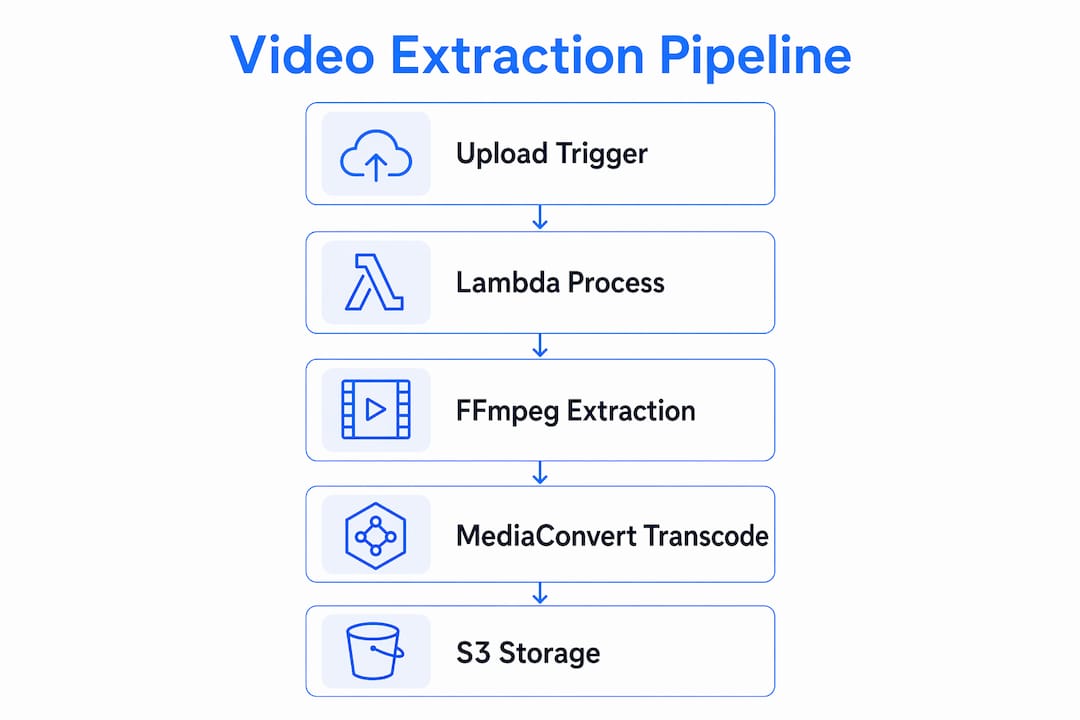
The choice between AWS MediaConvert and a custom Lambda FFmpeg pipeline is not about which is better. It is about which matches your scale and customization requirements.
| Dimension | AWS MediaConvert | Lambda + FFmpeg |
|---|---|---|
| Setup complexity | Low. Job templates handle most config. | Higher. You manage binary packaging and handler code. |
| Customization | Limited to MediaConvert presets and settings. | Full FFmpeg flag control. Any filter, codec, or format. |
| Output formats | HLS, DASH, MP4, thumbnails natively. | Any format FFmpeg supports. |
| Cost model | Per-minute of video transcoded. | Lambda invocation + compute time. |
| Infrastructure management | Fully managed by AWS. | You own the Lambda function, layers, and IAM roles. |
| Best for | High-volume, standardized transcoding at scale. | Custom extraction logic, unusual formats, low-volume jobs. |
MediaConvert OutputGroups write HLS playlists (.m3u8), transport stream segments (.ts), and thumbnails directly to S3 prefixes you define. This means you get a complete HLS delivery setup without writing a single FFmpeg command. The tradeoff is that MediaConvert does not support arbitrary processing logic. If you need to extract a specific frame range, apply a custom filter, or output a format MediaConvert does not support natively, Lambda plus FFmpeg is the right path.
For teams building at scale, coordinating S3, MediaConvert, CloudFront, and DynamoDB covers the full pipeline from ingestion to delivery. MediaConvert handles the heavy transcoding; Lambda handles the edge cases.
What are best practices for uploading large extracted video files to S3?
Large file uploads to S3 fail silently when developers use the wrong method. These practices prevent the most common failures.
-
Use
upload_fileorupload_fileobjfrom boto3, notput_object. Theput_objectmethod sends the entire file in a single HTTP request. For files over 100 MB, this is unreliable. boto3's upload_file splits large files into chunks uploaded in parallel, handling retries automatically. -
Set cache-control headers correctly for HLS assets. HLS playlists need
no-cache, no-storeso CDNs always fetch the latest manifest. Segment files (.ts) should usepublic, max-age=31536000, immutablebecause their content never changes once written. Getting this wrong causes stale manifests and broken playback. -
Use signed URLs for secure direct uploads. When clients upload video directly to S3 without routing through your server, generate a presigned URL with a short expiration (15 minutes is standard). This keeps your S3 bucket private while allowing authorized uploads.
-
Consider S3 Files for Lambda code simplification. S3 Files allows Lambda functions to treat S3 objects as a filesystem, eliminating the manual download-to-
/tmp-then-upload loop. Code opens and writes files directly on mounted S3 paths, which reduces boilerplate and removes an entire class of sync bugs. -
Add a
Callbackparameter to monitor upload progress. boto3'supload_filesupports a Callback parameter that fires on each chunk transfer. Use it to log progress to CloudWatch or update a DynamoDB job status record.
Pro Tip: Always set Content-Type: video/mp4 (or the correct MIME type) explicitly in ExtraArgs. S3 defaults to application/octet-stream, which breaks browser playback and some CDN behaviors.
What common mistakes break video delivery pipelines?
Most pipeline failures trace back to a short list of configuration errors. Knowing them in advance saves significant debugging time.
-
Missing FFmpeg binary. Lambda does not include FFmpeg. If you deploy without packaging the binary as a layer or including it in your zip, every invocation fails with a
FileNotFoundError. Verify the binary path in your handler code matches the layer's extraction path exactly. -
Ignoring
/tmpsize limits. Lambda's/tmpdirectory has a fixed size limit. Processing multiple large files in a warm container without cleanup fills this space and causes subsequent invocations to fail. Always delete temp files before your handler returns. -
Misconfigured IAM roles. Your Lambda execution role needs
s3:GetObjecton the source bucket ands3:PutObjecton the destination bucket. Missing either permission produces a crypticAccessDeniederror that looks like a code bug. -
Wrong S3 event filter. Without a suffix filter on your S3 trigger, processing output files can re-trigger the Lambda, creating an infinite loop. Filter on
.mp4or use separate source and destination buckets. -
Stale HLS manifests from incorrect cache headers. Cache-control policies for HLS assets on S3 and CloudFront directly affect playback reliability. Setting
max-ageon playlist files causes CDNs to serve outdated manifests, breaking live or updated streams.
The most expensive bugs in video pipelines are not code errors. They are configuration gaps: a missing IAM permission, a wrong cache header, an uncleaned temp file. Audit your configuration before you audit your code.
Key takeaways
Automating video extraction and delivery to S3 requires combining the right AWS services, correct FFmpeg packaging, multipart upload methods, and precise cache-control headers to build a pipeline that holds up at production scale.
| Point | Details |
|---|---|
| Package FFmpeg correctly | Include FFmpeg as a Lambda Layer or static binary before any extraction logic runs. |
| Use boto3 multipart uploads | Call upload_file or upload_fileobj to handle large files with automatic parallelism and retries. |
| Separate source and destination buckets | Prevents recursive Lambda triggers and simplifies IAM permission scoping. |
| Set cache headers per asset type | Use no-cache for HLS playlists and immutable for segments to prevent stale CDN delivery. |
| Choose MediaConvert for scale | Use managed transcoding for high-volume standardized jobs; reserve Lambda FFmpeg for custom extraction logic. |
What I've learned building video pipelines that actually hold up
After working with video extraction infrastructure across multiple production environments, the pattern I keep returning to is this: the teams that struggle are the ones who treat the pipeline as a code problem when it is mostly a configuration problem.
The FFmpeg packaging step trips up nearly every first-time Lambda video builder. It is not intuitive that a fully functional Lambda function can fail entirely because a binary is missing from the deployment artifact. Once you internalize that Lambda is a stripped-down execution environment, you start auditing your dependencies before writing handler logic.
The cache-control issue is subtler and more damaging. I have seen streaming platforms where HLS playback broke intermittently for days before anyone traced it to a CDN serving a stale .m3u8 file. The fix was two lines of ExtraArgs in a boto3 call. The diagnosis took three days.
My honest recommendation for teams moving beyond a few hundred videos per day: stop building custom FFmpeg pipelines for standard transcoding and let MediaConvert handle the volume. Use Lambda FFmpeg only where MediaConvert cannot go, which is custom filters, unusual formats, and frame-level extraction logic. This split gives you managed transcoding at scale without giving up flexibility where you actually need it.
One more thing: monitor your Lambda processing times and S3 costs from day one. Video workloads can generate surprising egress charges when CloudFront is not in front of your S3 bucket. Set a billing alert before you go to production, not after your first invoice.
— Alexandre
Skip the infrastructure and ship faster with Tornadoapi
Building and maintaining a Lambda FFmpeg pipeline takes real engineering time. Tornadoapi is the direct cloud export infrastructure that sits between YouTube, Instagram, TikTok, and Spotify and your S3 bucket. Your team writes one API call; Tornadoapi handles anti-bot systems, proxy rotation, format normalization, and delivers the file directly to your S3 destination.
Tornadoapi delivers 300 TB per month at 99.998% extraction reliability with 50 Gbps capacity. If your workflow involves extracting creator videos at scale for AI training, transcription SaaS, or content repurposing, the video clipping solution covers the full extraction-to-S3 path without the infrastructure overhead. See service tiers and pricing to find the right fit for your volume.
FAQ
What is the standard way to deliver extracted video to S3?
The standard approach uses an AWS Lambda function triggered by an S3 upload event, which runs FFmpeg to extract or transcode the video and uploads the output back to S3 using boto3's upload_file method.
How do I handle large video file uploads to S3 from Lambda?
Use boto3's upload_file or upload_fileobj methods instead of put_object. These methods automatically split large files into parallel chunks and handle retries, making them reliable for files of any size.
Why does FFmpeg fail inside AWS Lambda?
Lambda does not include FFmpeg in its runtime environment. You must package FFmpeg as a Lambda Layer or include a static binary in your deployment package, then reference the correct binary path in your handler code.
When should I use AWS MediaConvert instead of Lambda FFmpeg?
Use MediaConvert for high-volume, standardized transcoding jobs like HLS packaging and thumbnail generation. Use Lambda FFmpeg when you need custom filters, unusual output formats, or frame-level extraction logic that MediaConvert's job templates cannot accommodate.
How do I prevent stale HLS playlists when storing video in S3?
Set Cache-Control: no-cache, no-store on .m3u8 playlist files and Cache-Control: public, max-age=31536000, immutable on .ts segment files. Separate cache-control headers for playlists and segments prevent CDNs from serving outdated manifests while still caching stable segment files efficiently.