
Store Training Videos in Cloud Buckets: 2026 Guide
Training coordinators managing growing video libraries know the frustration: files scattered across drives, no clear access controls, and storage costs that creep up without explanation. When you store training videos in cloud buckets correctly, those problems disappear. Object storage buckets, the industry standard term for what many call "cloud buckets," give you a scalable, programmable layer for raw files, transcoded outputs, and archived content alike. This guide covers bucket setup, upload workflows, security, and automation, so your team stops managing chaos and starts running a real video infrastructure.
Table of Contents
- Key Takeaways
- How to store training videos in cloud buckets
- Creating and configuring your buckets
- Uploading and managing videos at scale
- Security, organization, and delivery best practices
- Common problems and how to fix them
- My honest take on what actually matters
- Automate your video ingestion with Tornadoapi
- FAQ
Key Takeaways
| Point | Details |
|---|---|
| Separate raw and served assets | Keep source files in private buckets and transcoded outputs in delivery buckets to cut cost and reduce security risk. |
| Plan bucket structure before uploading | Choosing storage classes and naming conventions upfront saves expensive reorganization later. |
| Use pre-signed URLs for uploads | Direct-to-bucket uploads via pre-signed URLs remove server bottlenecks and improve reliability at scale. |
| Apply CDN with signed cookies for delivery | Signed cookies protect entire URL patterns, making secure streaming far simpler to manage. |
| Automate lifecycle and ingestion | Trigger transcoding pipelines on upload events and set lifecycle rules to archive or delete stale content automatically. |
How to store training videos in cloud buckets
Before touching a console or writing a single CLI command, you need a plan. The decisions you make at this stage determine your storage costs, security posture, and how much manual work your team does in six months.
Choosing your provider and understanding bucket basics
Google Cloud Storage organizes objects inside buckets, which are project-level containers with their own permission boundaries. AWS S3 follows the same model. The bucket is not just a folder on a server. It is the unit of access control, billing, and replication. Pick a provider based on where your other infrastructure lives. If your transcoding runs on AWS Lambda, S3 is the obvious choice. If your team already uses Google Workspace and BigQuery, Google Cloud Storage fits naturally.
Storage classes matter more for video than for most file types because video files are large and often accessed in predictable patterns:
- Standard / Frequent Access for actively served training videos
- Nearline / Infrequent Access for content accessed less than once a month
- Coldline / Archive for raw masters you keep for compliance but rarely touch
Multiple bucket structures let you assign different storage classes to different asset types, which directly controls your bill. A raw 4K master sitting in Standard storage costs significantly more than the same file in Coldline, and most teams never retrieve raw masters after the first transcode.
Planning your bucket structure
Most training video workflows need at least two buckets: one for raw uploads and one for transcoded, viewer-facing renditions. Some teams add a third for archived or retired content. This separation is not just about organization. It lets you apply strict private permissions to raw files while making your delivery bucket accessible via a CDN.
Pro Tip: Name buckets with a consistent prefix that includes environment and purpose, such as "companyname-training-raw-prod*and*companyname-training-serve-prod`. This makes IAM policies and monitoring filters trivial to write.
Set up your cloud account, create a project or organization unit, and block all public access on every bucket by default. You will grant access intentionally, not discover you forgot to restrict it.

Creating and configuring your buckets
With your plan in hand, the actual creation takes minutes. Here is a practical sequence for Google Cloud Storage, which maps closely to AWS S3 with slightly different CLI syntax.
- Create the raw upload bucket via the console or CLI. Set the storage class to Standard and the location to a region close to your upload sources. Block public access immediately.
- Create the serving bucket in the same region as your CDN origin. Standard storage here is appropriate since these files are accessed frequently.
- Configure IAM roles on the raw bucket to allow only your upload service account and transcoding pipeline. No viewer access belongs here.
- Set bucket-level permissions on the serving bucket to restrict direct public access. Your CDN, not the bucket, will be the public face. Bucket-level access control is the primary security boundary, so get this right before any files land.
- Apply a lifecycle rule to the raw bucket. A rule that transitions objects to Coldline after 30 days and deletes them after 365 days (or moves them to a separate archive bucket) prevents runaway storage costs.
- Enable versioning on the raw bucket if you want the ability to recover overwritten source files. Skip versioning on the serving bucket since those files are always regenerated from the raw master.
- Set up logging on both buckets. Access logs are your audit trail when a permission issue surfaces later.
For AWS S3, the CLI equivalent of step one is aws s3api create-bucket --bucket companyname-training-raw-prod --region us-east-1 with a --no-public-access-block flag left off and a follow-up aws s3api put-public-access-block command to lock it down.
Pro Tip: On AWS, enable S3 Object Lock on your raw master bucket if your organization has compliance requirements. It prevents deletion or overwriting for a defined retention period, which satisfies many audit frameworks without any additional tooling.
A note on naming conventions inside buckets: use a consistent folder path structure like /{course-id}/{lesson-id}/{filename}. This is not a real folder hierarchy (object storage is flat), but it creates a logical path that every tool, from the AWS console to your application code, can use predictably.
Uploading and managing videos at scale
Getting files into buckets efficiently is where most teams hit their first real problems. Uploading through an application server works for a handful of files. It breaks down when you are ingesting hundreds of hours of content.
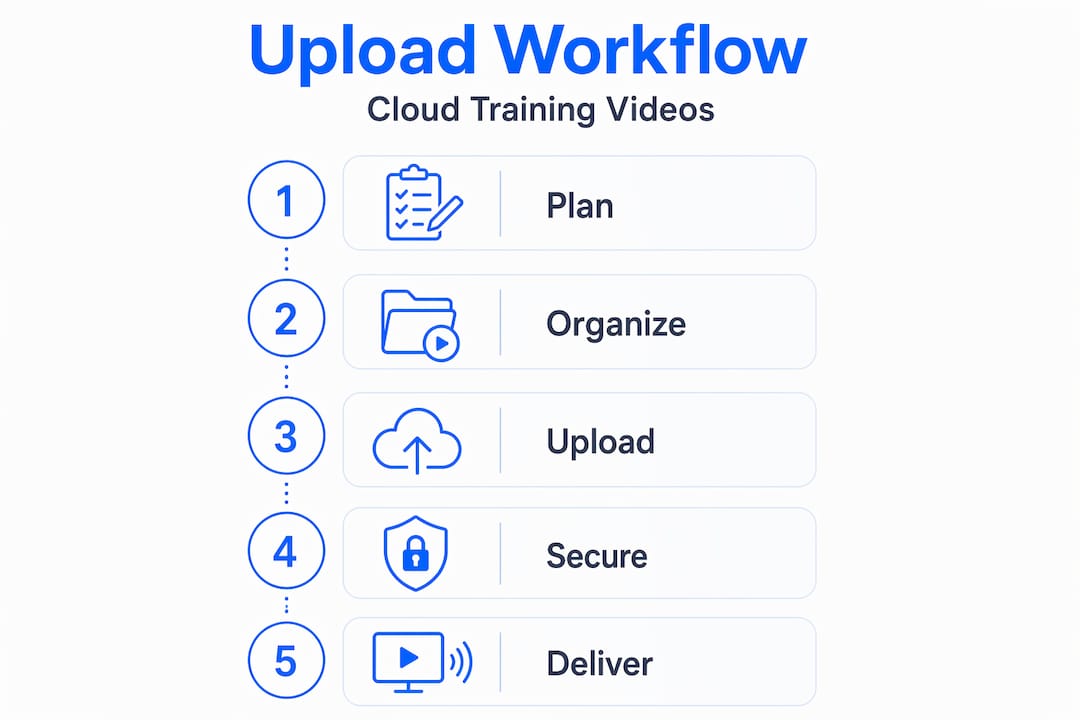
Pre-signed URLs let clients upload directly to S3 or GCS without routing bytes through your servers. Your backend generates a time-limited URL with the correct permissions, hands it to the client or upload agent, and the file goes straight to the bucket. This removes the server as a bottleneck and makes uploads significantly more reliable.
For bulk ingestion, multipart uploads are non-negotiable on files over 100 MB. Both S3 and GCS support chunked parallel uploads that recover gracefully from dropped connections. Parallel chunked uploads also trigger processing pipelines faster because parts arrive concurrently rather than sequentially.
Key automation patterns to implement:
- Event-driven transcoding: Configure an S3 event notification or GCS Pub/Sub trigger to fire a transcoding job whenever a new file lands in the raw bucket. Your pipeline picks up the file, processes it, and deposits HLS renditions in the serving bucket automatically.
- Metadata tagging on upload: Apply object metadata at upload time, such as
course-id,lesson-id, andcreated-by. This makes lifecycle rules and search queries far more specific. - Batch upload scripts for existing libraries: When migrating an existing video library, REST API automation handles the sequence of metadata creation, file upload, and ingestion initiation. Doing this manually for hundreds of files introduces errors. A script does not.
- Lifecycle policies for archival: Set rules that move content to cheaper storage tiers after a defined inactivity period. If a training module is retired, the content should not sit in Standard storage indefinitely.
You can also explore building video training datasets using similar ingestion patterns when your organization needs to feed AI tools or transcription systems alongside normal training delivery.
Pro Tip: When writing batch upload scripts, always implement exponential backoff on failed requests. Cloud storage APIs return transient errors under load, and a script that retries immediately will hammer the API and fail harder.
Security, organization, and delivery best practices
Getting content into buckets is only half the job. How you protect and serve those files determines whether your training portal actually works at scale.
Separating masters from delivery assets
Raw masters in private storage and transcoded HLS renditions in a delivery bucket is the architecture that nearly every production video system uses for good reason. Raw masters can be archived or deleted after transcoding. Serving renditions are optimized for delivery. This separation means your delivery bucket never holds files with more resolution or quality than users actually need, which limits what an unauthorized user could access.
CDN and signed URL delivery
Never serve training videos directly from a bucket URL. Use a CDN like CloudFront or Cloud CDN in front of your serving bucket. Then restrict access with signed cookies rather than signed URLs. Signed cookies grant access to entire URL patterns, so a learner who authenticates to your portal gets a cookie that covers all segments of a lesson's HLS stream. A signed URL, by contrast, covers only a single object. Managing one cookie per session is far simpler than generating hundreds of per-segment signed URLs.
HLS delivery via signed cookies also changes the risk profile at a fundamental level. Browsers request small .ts segment files rather than an entire MP4. Each segment is constrained by the cookie policy, so an attacker who intercepts one segment gets a few seconds of video, not the complete file.
Cache control for streaming
This is where most teams get it wrong. HLS streaming has two types of files with opposite caching requirements:
| File type | Cache directive | Reason |
|---|---|---|
| .m3u8 playlist | no-cache or very short TTL | Playlists change; stale manifests break playback |
| .ts segments | Long TTL (e.g., 1 year) | Segments are immutable once written; aggressive caching reduces bandwidth |
Configuring separate CDN behaviors for playlist files and segment files is not optional for reliable streaming. CloudFront allows you to create distinct cache behaviors by path pattern, so .m3u8 files get one policy and .ts files get another.
Access control and folder organization
Use IAM roles rather than bucket-level ACLs wherever possible. Roles scale. ACLs become unmanageable. For your training portal, a read-only service account for your CDN origin, a write-only service account for your upload pipeline, and an admin account for your engineering team covers most scenarios. Avoid creating per-user bucket permissions. Authentication belongs in your application layer, not in the storage layer.
Organize content with a predictable path structure. Something like /courses/{course-id}/lessons/{lesson-id}/hls/ for serving assets makes it trivial to set IAM conditions, write lifecycle rules, and debug access issues. You can find additional guidance on multi-cloud storage patterns when your organization spans more than one cloud provider.
Common problems and how to fix them
Even a well-planned setup runs into issues. Here are the ones that come up most often.
- Public access misconfiguration: A bucket that should be private gets a public policy applied by accident. Enable the "Block all public access" setting at the account or organization level so individual bucket settings cannot override it.
- Upload failures on large files: Files over 5 GB require multipart upload on S3. If your upload client does not handle this automatically, implement chunked upload explicitly. Most SDKs handle this transparently if you initialize correctly.
- Stale HLS content after updates: If a learner sees an old version of a lesson, the playlist file is cached. Short TTLs on
.m3u8files solve this. If it is already in production, invalidate the CDN cache for the playlist path. - Permission errors that appear intermittent: These are almost always clock skew issues with signed URLs, or a service account that lacks a specific permission on the object rather than the bucket. Check object-level ACLs if you use a mixed ACL and IAM model.
"The most expensive storage mistake is not paying too much per gigabyte. It is storing the wrong files in the wrong tier for months before anyone notices."
Pro Tip: Set up a billing alert at 110% of your expected monthly storage cost. Cloud storage bills creep, and alerts are free.
My honest take on what actually matters
I have watched teams spend weeks on bucket naming conventions and zero time on cache policies. That is backwards. In my experience, the single decision with the highest impact on both cost and user experience is how you configure your CDN caching for HLS segments versus playlists. Getting it wrong means either excessive origin load or learners seeing stale content. Neither is acceptable for a training platform with thousands of users.
What I have found actually works is treating the serving bucket as purely write-once infrastructure. Once a rendition is in the serving bucket, nothing touches it except a deliberate content update. No scripts, no manual uploads, no overwriting. Every change goes through the same pipeline: raw upload, transcode, deposit. This discipline eliminates a whole category of support tickets.
Access control is the other area where I have seen teams make costly assumptions. Bucket permissions are simple and easy to reason about. Application-level authentication is complex and easy to misconfigure. Keep them clearly separated. Your bucket does not know who your learners are. Your application does. Let each layer do its job.
Automation is not optional past a certain scale. Manually uploading and organizing even fifty training videos a month is a part-time job. The teams that run cleanly have upload events, transcoding pipelines, and lifecycle rules doing the work. The ones that struggle are doing it by hand.
— Alexandre
Automate your video ingestion with Tornadoapi
If your training workflow involves pulling video content from YouTube, TikTok, or other platforms before storing it in your cloud buckets, manual downloading is not a workflow. It is a liability. Tornadoapi sits between those platforms and your storage pipeline: one API call, and the file lands directly in your S3, GCS, R2, or Azure bucket, normalized and ready for transcoding. With 300 TB delivered monthly and contractual reliability at 99.998%, it replaces the fragile DIY extraction scripts most teams are quietly maintaining. Check the pricing tiers to find the right fit for your ingestion volume.
FAQ
What is a cloud bucket for storing training videos?
A cloud storage bucket is a project-level container in services like AWS S3 or Google Cloud Storage that holds objects, including video files. It provides access control, storage class selection, and lifecycle management for all the objects inside it.
How do you secure training videos stored in cloud buckets?
Keep raw files in private buckets with no public access, transcode outputs to a separate delivery bucket, and serve content through a CDN using signed cookies for access control. This prevents direct bucket access while keeping delivery fast and controlled.
What is the best way to upload large training videos to cloud storage?
Use pre-signed URLs for direct-to-bucket uploads and enable multipart upload for files over 100 MB. Multipart parallel uploads improve reliability significantly and allow you to resume failed transfers without starting over.
How should I organize training videos inside a bucket?
Use a consistent path structure like /courses/{course-id}/lessons/{lesson-id}/ to group related assets. This makes lifecycle rules, IAM policies, and debugging straightforward, even as your library grows to hundreds of courses.
How do I reduce cloud storage costs for a large training video library?
Separate raw masters from serving renditions and assign cheaper storage classes, such as Coldline or Glacier, to files you rarely access. Set lifecycle rules to transition or delete content automatically after defined inactivity periods to keep costs predictable.